Specter
Available For
- Mac
- Linux
- Windows
Contents
Instructions
Specter Desktop
-
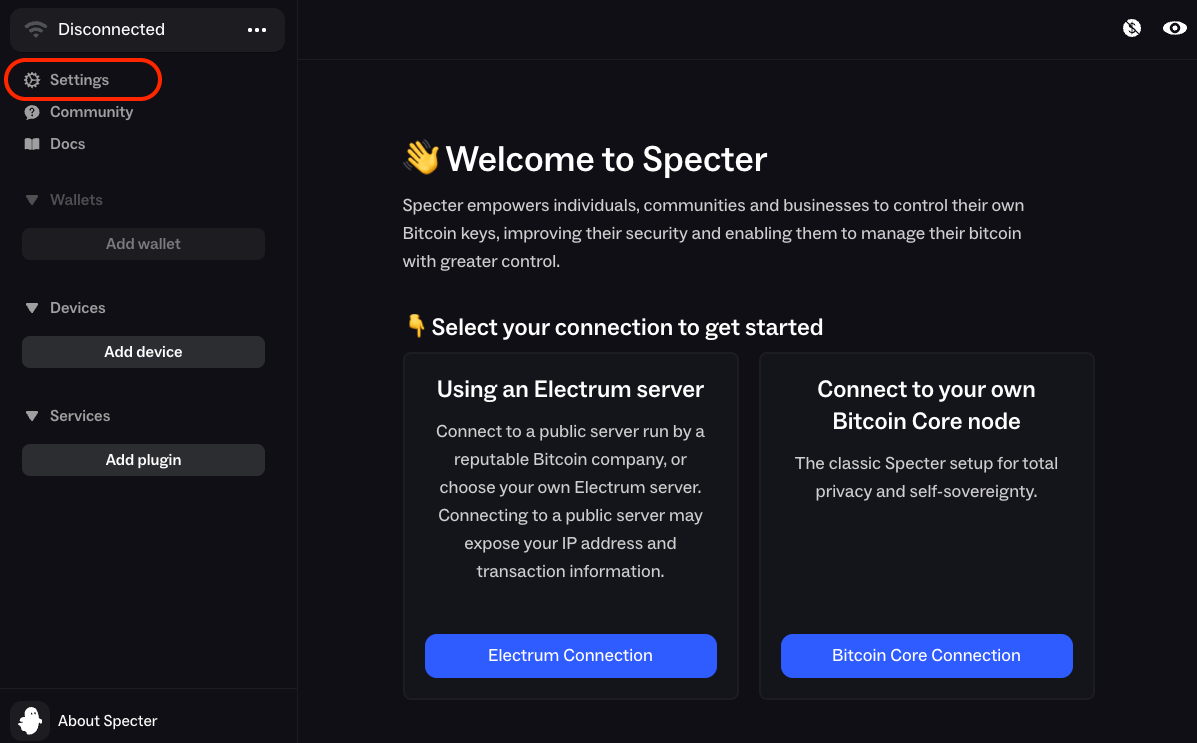
If this is your first time using Specter, you will be shown a screen to pick a connection method. But we'll skip this for now and set up Tor.
-
Click
Settingsand select theTortab.-
If you have Tor running as local Proxy scroll down and select
Custom-
Enter or leave the URL as
socks5h://localhost:9050 -
Click
Test connection- if it fails, please review your Tor proxy
-
-
If you don't have Tor running in the background of your system, select
Built-in- Click
Set Up, thenSetup Tor
- Click
-
then click the
Savebutton
-
Connecting to Bitcoin Core (Recommended)
-
Click the
...menu and click+ Add Connection -
In the
UsernameandPasswordfields, enter your Bitcoin Core RPC credentials (found inServices > Bitcoin Core > Properties)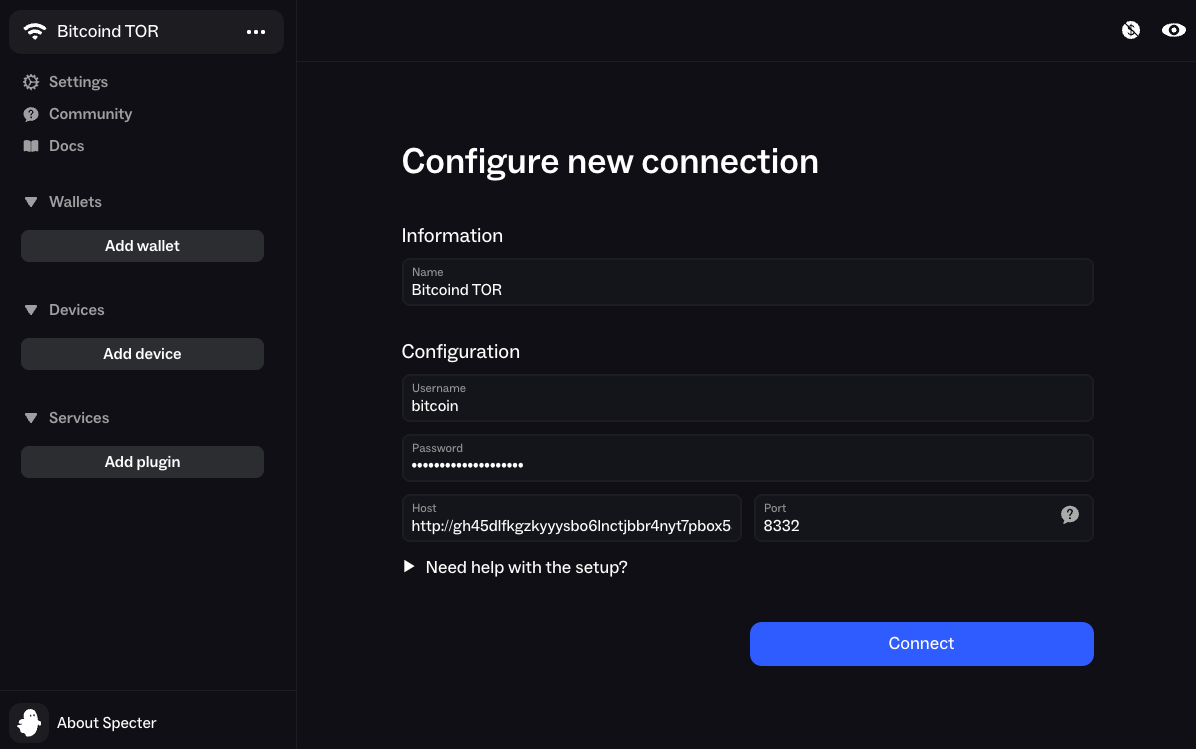
-
In
Host, enter your Bitcoin Core RPC Interface Tor Address (found inServices > Bitcoin Core > Interfaces). -
In
Port, enter8332and clickConnect
Connecting to Electrs
If you already have a Bitcoin Core connection set up, Specter will make you delete it before you can add your connection to Electrs. If you don't already have a connection, you can skip the first step.
-
Delete any connections you already have by clicking
..., hovering over the connection to reveal the cog icon, clicking the cog icon and then clickingDelete. Do this for all the connections you have. -
Click
Add pluginthen clickSpectrum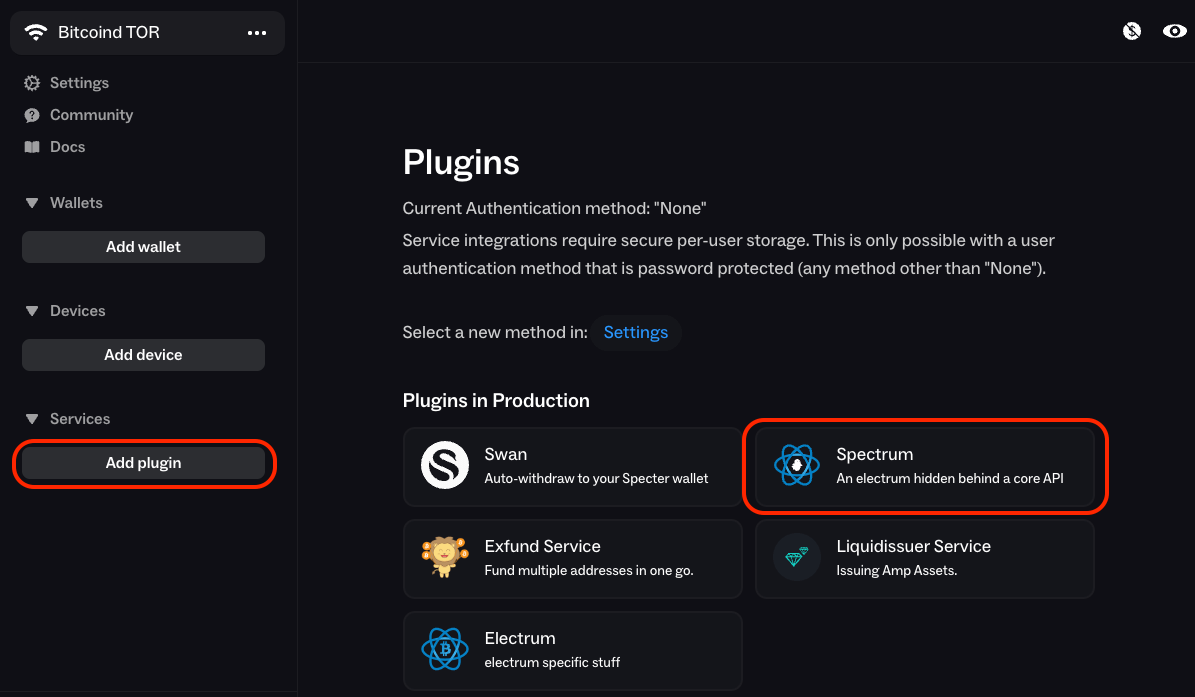
-
Select
Enter my own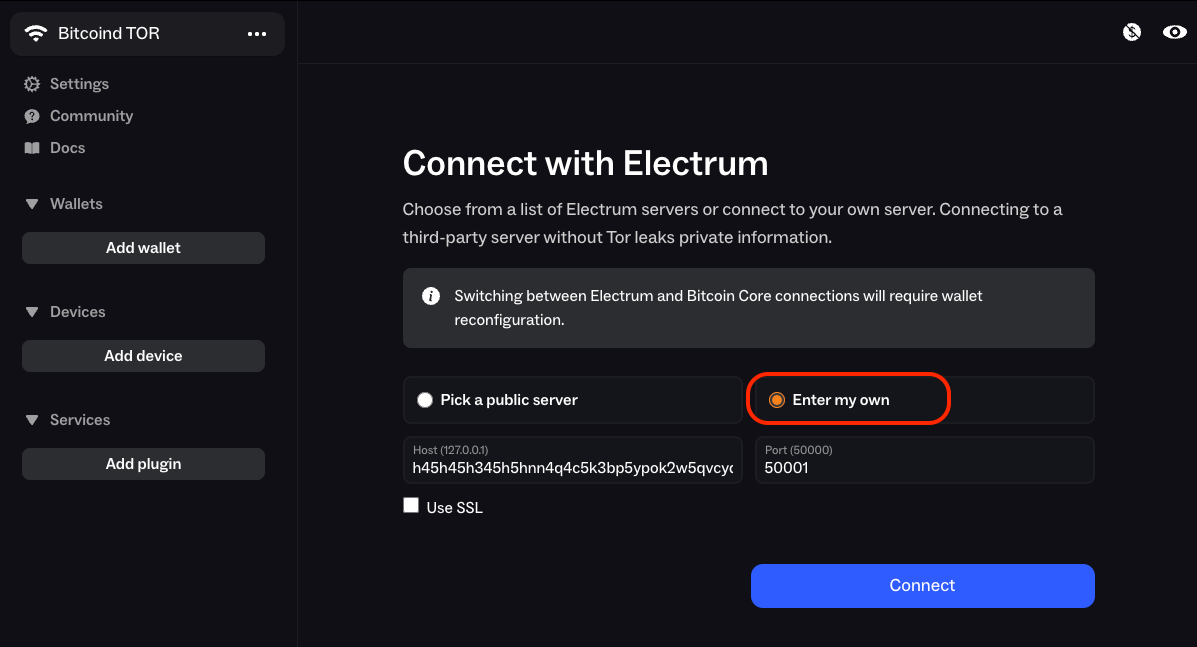
-
In the
Hostfield, enter your electrs Tor hostname (found inServices > electrs > Properties) and enter your port as50001. -
Click
Connect, thenLet's Go!