Blockstream Green
Available For
- Android
- iOS
- Linux
- macOS
- Windows
Contents
Instructions
Desktop Wallet
-
Open Blockstream Green and click the gear icon on the bottom left to open the
App Settings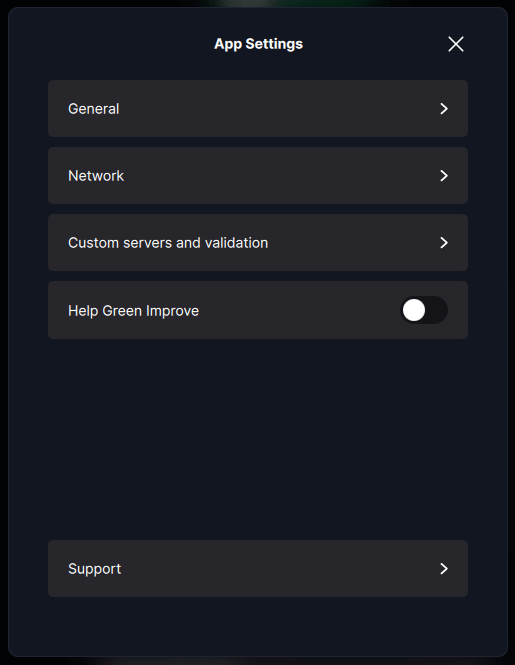
-
Click the
Networkbutton -
Toggle the
Connect with Torto On (Note: you don't need to connect through a proxy, but optionally can connect to your own if you have set one up.)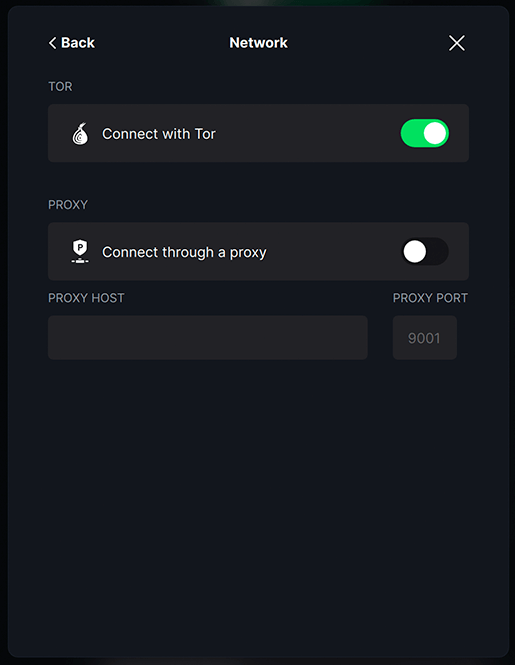
-
Click
< Back, then clickCustom servers and validation -
Now toggle
Choose the Electrum servers you trustto On to display aBitcoin Electrum Serverfield. -
Back in your StartOS web interface, go to
Services > Electrs > Propertiesand copy theQuick Connect URL -
Switch back to Blockstream Green and paste it into the
Bitcoin Electrum Serverfield, and remove:t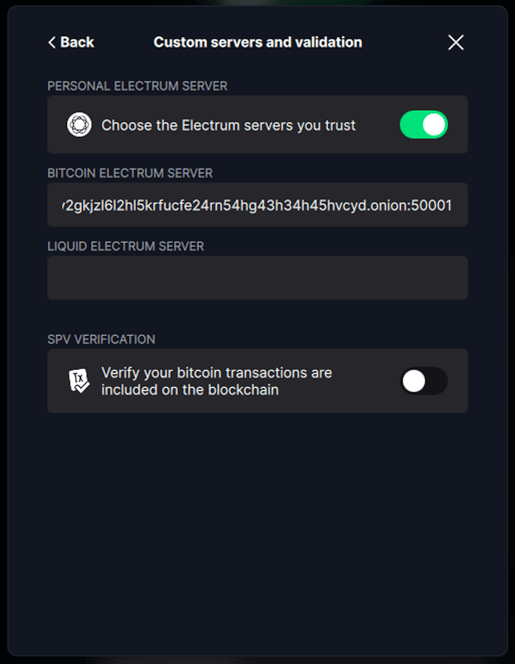
-
Click
< Back, then clickXto close.
The current version of Blockstream Green no longer displays the status of your in-app Tor connection, unlike previous versions. This leaves you uncertain about whether you've completed the steps correctly or if any Tor connectivity issues are due to your server or the in-app Tor connection. In some situations, it may be worth connecting to your local proxy from Step 3, as you can verify that with commands.
Mobile Wallet
-
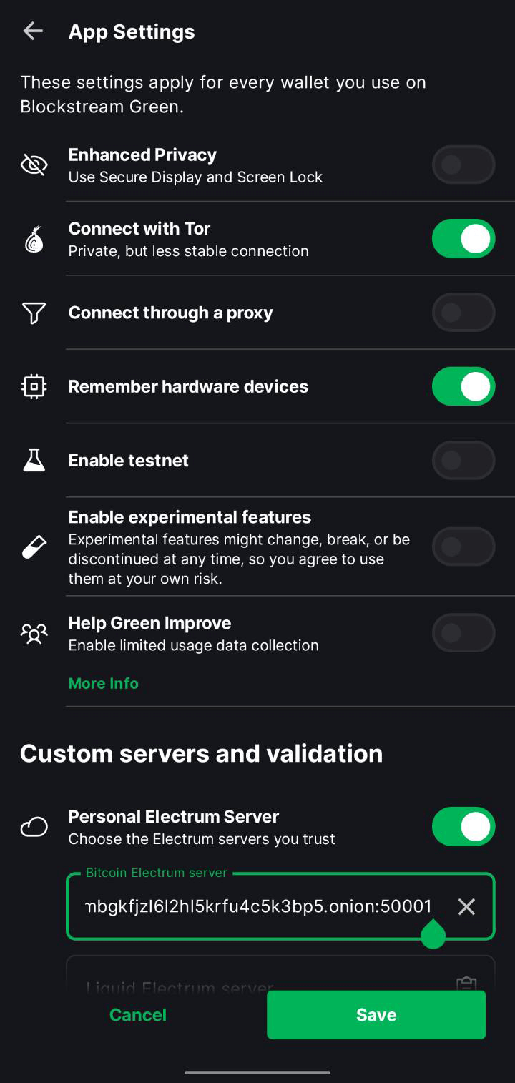
Open Blockstream Green and tap
App Settingson the bottom or bottom right -
Toggle
Connect with Torto On -
Toggle
Personal Electrum Serverto On to display aBitcoin Electrum serverfield. -
Back in your StartOS web interface, go to
Services > Electrs > Propertiesand copy theQuick Connect URL -
Switch back to Blockstream Green and paste it into the
Bitcoin Electrum Serverfield, and remove:t -
Tap
Save