Running Tor (Windows)
-
Unfortunately, Tor Project no longer publishes a standalone Tor binary for Windows, so the recommended way to get it is with the Tor Browser Bundle. You can download it here.
-
Once it is downloaded, run the installer by right clicking on it and selecting "Run as Administrator".
-
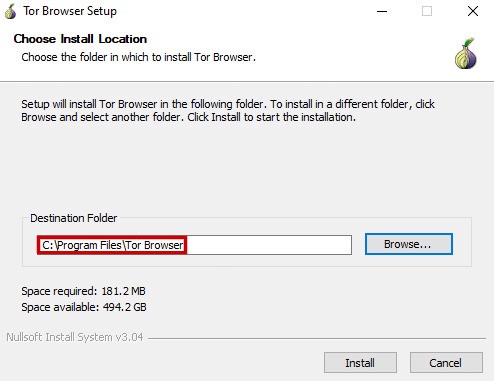
Once you have selected a language, you should see a menu like this:
-
Open your Command Prompt as an administrator. In Windows 10, you can simply type
cmdin the Windows search bar. Right click on the first result, and select "Run as Administrator". -
Configure Tor to run perpetually in the background. Insert your destination folder (from above) between
binPath="and theBrowsersubfoldersc create tor start= auto binPath="C:\Program Files\Tor Browser\Browser\TorBrowser\Tor\tor.exe -nt-service" -
Start Tor.
sc start tor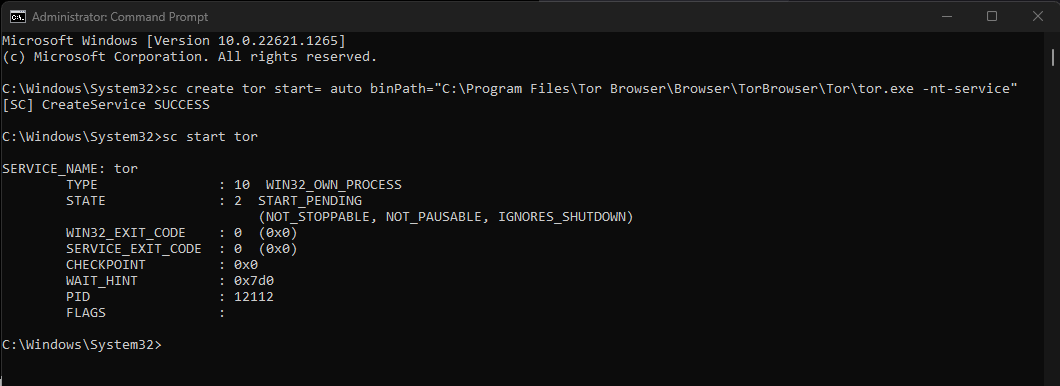
If you receive
The specified service already exists:-
Run the command:
sc delete tor -
Uninstall the Tor Browser, following these steps.
-
Begin this guide again from the beginning.
-
-
If using Firefox or Tor Browser, complete this final step